

When your inbox stays open all day, every new message becomes a decision made at the worst possible moment: in the middle of something else. What works is a workflow that routes most mail before you see it and handles the rest in short, scheduled sessions.
This guide sets up four pieces: filters that move newsletters and notifications out of the inbox, a four-decision triage that touches each message at most twice, two or three fixed email windows, and a 10-minute inbox shutdown at the end of the day. Setup takes about an hour. Upkeep takes minutes.
Diagnose where your inbox time actually goes
Open your last 100 received messages and tally them into four groups: automated (newsletters, receipts, tool notifications), FYI or CC, needs a short reply, and needs real work. The split tells you which step to prioritise.
- More than half automated: filters (Step 1) will remove most of your noise.
- Old actionable mail still sitting in the inbox: your triage has no destinations (Step 3).
- Checking dozens of times a day: the problem is frequency, not volume (Step 4).
Frequency matters because interruptions rarely cost only the seconds spent reading. Observational research by UC Irvine’s Gloria Mark found that after an interruption, workers took an average of 23 minutes and 15 seconds to return to their original project, typically tackling two other tasks in between. That is a finding about drifting through other work, not 23 minutes of staring at the screen, but email is a reliable trigger for exactly that drift.
Step 1: Route newsletters and notifications with filters
Filters do triage for you before mail reaches the inbox. Aim for three or four rules that catch high-volume, low-urgency senders and send them to a single label you read once a day or less.
In Gmail, click the search options icon at the right of the search bar, enter your criteria, then click Create filter. Choose Skip the Inbox (Archive it) and Apply the label, and tick Also apply filter to matching conversations to clean up existing mail too. Gmail’s filter options can also forward, star or delete incoming messages automatically.
In new Outlook and Outlook on the web, go to Settings > Mail > Rules > Add new rule; in classic Outlook, use Home > Rules > Manage Rules & Alerts. A faster route in both is to right-click a message from the sender and choose Rules > Create rule. Outlook rules can move, categorise or flag messages as they arrive, so set them to move mail rather than just tag it.

| Mail type | Filter criteria | Action | Label |
|---|---|---|---|
| Newsletters and promotions | Has the words: unsubscribe | Skip inbox, apply label | Read Later |
| Tool notifications (project tracker, shared docs) | From: the tool’s notification address | Skip inbox, apply label | Updates |
| Receipts and invoices | Subject contains: receipt OR invoice OR order | Skip inbox, apply label | Receipts |
| Your manager or top clients | From: their addresses | Star or mark important; keep in inbox | VIP |
Check the Read Later label after a week. Anything you never opened is a candidate to unsubscribe from rather than filter; Gmail’s Manage subscriptions view lists senders by volume so you can drop several at once.
Step 2: Clear the backlog in one pass
Do not triage thousands of old messages one by one. In Gmail, search in:inbox older_than:14d, select all, click the link to select every matching conversation, and archive. In Outlook, sort by date and archive everything above a two-week cutoff.
Archived mail stays searchable, so nothing is lost. If something old still matters, someone will reply to the thread and it returns to your inbox. Process only the last two weeks with the triage below.
Step 3: Triage every message with the 4Ds
Every message that survives your filters gets exactly one of four decisions the first time you open it. That first touch only decides; a second touch, later and inside a calendar block, is reserved for messages that need real work. Nothing gets opened a third time.
The doing threshold comes from David Allen’s Getting Things Done: if an action takes less than two minutes, do it now, because tracking it would take longer than finishing it. Deferred items leave the inbox for your task list, the same capture habit at the heart of the GTD system.
| Decision | Concrete examples | Action and label | Gmail keys | Outlook keys (Windows) |
|---|---|---|---|---|
| Delete/Archive | Meeting reminder, CC on a resolved thread, shipping confirmation | Archive (delete only spam); unsubscribe if it recurs | e to archive, # to delete | Backspace to archive, Delete to delete |
| Delegate | Request for data another team owns; vendor question for procurement | Forward with what you need and by when; label @Waiting and archive your copy | f, send, l to label @Waiting, then e | Ctrl+F, send, then Ctrl+Shift+V to move to @Waiting |
| Do (under 2 min) | Confirm a meeting time; approve a small expense; answer a yes/no question | Reply now, then archive | r or a, send, then e | Ctrl+R or Ctrl+Shift+R, send, then Backspace |
| Defer/Snooze | Review a 12-page proposal; feedback that needs a considered reply; invoice due Friday | Add a dated task or snooze to the day you can act; label @Action or archive | Shift+T to add to Tasks (or b to snooze), then e | Ctrl+Shift+G to flag with a due date, then Backspace |
Gmail’s shortcuts are off by default: turn them on under Settings > See all settings > General > Keyboard shortcuts, then save. Treat the two-minute line as strict; a reply that needs another system, a figure check or more than a few sentences is a Defer, however quick it feels.
Keep labels to @Action, @Waiting, Read Later and Archive. Dozens of project folders force a filing decision on every message, which is the friction this system removes.
A worked example: a property-management coordinator opens a 9:30 window with 34 new messages after filters caught another 50 portal notifications. Twenty get archived in about four minutes, six quick tenant replies take ten, two maintenance requests are forwarded to contractors and labelled @Waiting, and six become dated tasks such as lease renewals. The inbox is empty in under 20 minutes, and none of the six real tasks has been started yet. That is correct: triage decides, it does not do.
Doing deferred emails inside calendar blocks
A deferral only works if it lands somewhere you trust. Cal Newport makes the same case: obligations belong in a task list or calendar as soon as you spot them, so the inbox holds only unprocessed mail.
Name each task with a verb and an outcome, such as “Send renewal terms with two rent options”, add the deadline, and keep a link to the thread. Gmail’s Add to Tasks keeps that link automatically, and in Outlook a flagged message appears in To Do with the email attached.
Then give the work a slot. Drag large deferrals into their own blocks, as described in our time blocking guide, and group small ones into a single 30 to 45 minute “email tasks” block. The coordinator above would put the six lease and repair tasks into one 14:00 block. In that block, open the task, click through to the thread, do the work and send the reply in one sitting. If you can’t finish, the task was too vague: rewrite it as the next concrete step and reschedule it rather than rereading the email.
Step 4: Set two or three fixed email windows
Batching has direct evidence behind it. In a crossover trial by Kostadin Kushlev and Elizabeth Dunn, people who limited email checks to three times a day reported lower daily stress than when they checked as often as they liked. The study was small and relied on self-reports, but the direction is consistent with Mark’s interruption findings.
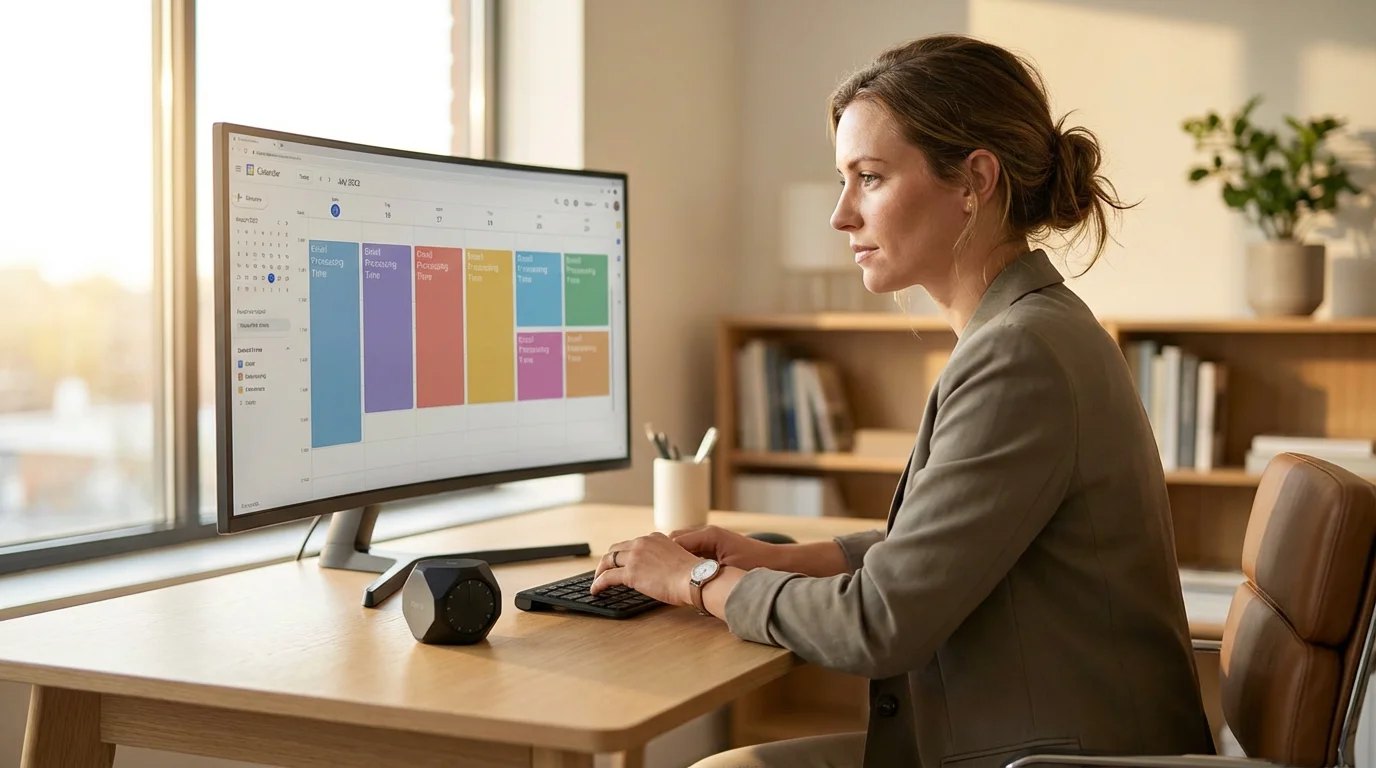
Pick windows that match your role, put them on your calendar, and close the email client in between. Turn off banners, sounds and badges too; these notification rules cover which alerts to keep.
- Low volume (under 40 a day), such as a researcher or writer: two windows, 11:30 and 16:30, 20 minutes each.
- Moderate volume, such as an IT procurement officer tracking vendor quotes and licence renewals: three windows, 9:30, 13:00 and 16:30, 20 to 30 minutes each.
- Responsive roles, such as a travel agency booking agent handling 120 a day: a five-minute scan of VIP and same-day travel messages every hour, plus three full triage windows.
The same logic applies to other repeated small tasks; batching explains how to group them. If colleagues expect instant replies, set the expectation once in your signature:
- Signature line: “I reply to email at 9:30, 13:00 and 16:30. For anything urgent, call or message me directly.”
- Reply to a “just checking” follow-up: “Got it in my 13:00 window; you’ll have an answer by end of day.”
Upkeep: the 10-minute end-of-day inbox shutdown
The last window of the day ends differently. Cal Newport describes a shutdown ritual that includes a final inbox check and capturing every open loop into a task list so that unfinished work stops pulling at you in the evening. Here is the email portion, timed:

- Minutes 0-4: Triage new arrivals with the 4Ds, but bias toward Defer. Anything over two minutes gets snoozed to your first window tomorrow.
- Minutes 4-6: Scan @Waiting. Anything older than three working days gets a one-line nudge or a dated follow-up task.
- Minutes 6-8: Scan @Action and confirm each item exists in your task list with a date. Pick the one deferred email task you will start first tomorrow.
- Minutes 8-10: Check tomorrow’s first two calendar commitments, then quit the email client on your computer and sign out of, or hide, the mail app on your phone.
The inbox shutdown slots into a broader end-of-day routine; the workday shutdown ritual covers the rest.
When the system slips
After a busy week the inbox will fill again. Do not restart from scratch: rerun the Step 2 backlog sweep with a seven-day cutoff, then triage what remains. Once a month, open Read Later and Updates, unsubscribe from anything unread, and add a filter for any new sender that reached your inbox more than five times.
Watch for one habit in particular. If you catch yourself marking messages unread again (Shift+U in Gmail, Ctrl+U in Outlook), you skipped a decision; defer the message as a task instead.


6 Comments