Most knowledge workers know Ctrl+C and Ctrl+V and stop there. For the rest of the day they reach for the mouse to switch windows, close tabs and select text. Each trip is short, but it happens hundreds of times a day, and each one pulls attention away from the work.
You don’t need to memorise a 100-item cheat sheet. Learn the 30 or so shortcuts below for system navigation, browser tabs, cursor movement and text selection. Add them nine at a time with the 1-3-5 rule, and keep the mouse for the jobs it is genuinely better at.
Start with the actions you repeat most
Before learning anything, spend one working hour noticing every time your hand leaves the keyboard. Tally the reason: switching apps, changing tabs, placing the cursor, selecting a phrase or opening a menu. Three or four actions usually account for most of the trips.
Those are your first targets. A shortcut you use 80 times a day repays the learning effort within a week. One you use twice a month is trivia. To get the same picture across a whole day, run a time audit.
There is also a physical case for fewer mouse trips. In a laboratory study of women aged 18 to 40, grasping and pointing the mouse straight after typing produced the highest muscular and postural stress of the workstation conditions tested. It was a small, specific sample: a reason to cut unnecessary reaches, not proof of injury risk.

Windows vs macOS shortcut cheat sheet
Every shortcut below comes from the official Windows keyboard shortcut list, Apple’s Mac shortcut reference and Chrome’s shortcut page. As a rule, Windows Ctrl becomes Cmd on a Mac. The exception is moving by word or paragraph, which uses Option.
| Action | Windows | macOS |
|---|---|---|
| Essentials | ||
| Copy / cut / paste | Ctrl+C / X / V | Cmd+C / X / V |
| Undo / redo | Ctrl+Z / Ctrl+Y | Cmd+Z / Cmd+Shift+Z |
| Save | Ctrl+S | Cmd+S |
| Find in page or document | Ctrl+F | Cmd+F |
| Paste without formatting (Chrome) | Ctrl+Shift+V | Cmd+Option+Shift+V |
| System navigation | ||
| Switch between apps | Alt+Tab | Cmd+Tab |
| Switch windows of the same app | Alt+Tab (lists every window) | Cmd+` (grave accent) |
| Search and launch apps or files | Windows key, then type | Cmd+Space |
| Quit the current app | Alt+F4 | Cmd+Q |
| Lock the screen | Windows+L | Ctrl+Cmd+Q |
| Screenshot a selected area | Windows+Shift+S | Cmd+Shift+4 |
| Deal with a frozen app | Ctrl+Shift+Esc (Task Manager) | Cmd+Option+Esc (Force Quit) |
| Tab management (Chrome) | ||
| New tab / new window | Ctrl+T / Ctrl+N | Cmd+T / Cmd+N |
| Close current tab | Ctrl+W | Cmd+W |
| Reopen last closed tab | Ctrl+Shift+T | Cmd+Shift+T |
| Next / previous tab | Ctrl+Tab / Ctrl+Shift+Tab | Cmd+Option+Right / Left |
| Jump to tab 1 to 8 / last tab | Ctrl+1 to 8 / Ctrl+9 | Cmd+1 to 8 / Cmd+9 |
| Jump to address bar | Ctrl+L | Cmd+L |
| Cursor movement | ||
| One word left / right | Ctrl+Left / Right | Option+Left / Right |
| Start / end of line | Home / End | Cmd+Left / Right |
| Previous / next paragraph | Ctrl+Up / Down | Option+Up / Down |
| Start / end of document | Ctrl+Home / End | Cmd+Up / Down |
| Text selection and deletion | ||
| Select word by word | Ctrl+Shift+Left / Right | Option+Shift+Left / Right |
| Select to start / end of line | Shift+Home / End | Cmd+Shift+Left / Right |
| Select to end of paragraph | Ctrl+Shift+Down | Option+Shift+Down |
| Select to end of document | Ctrl+Shift+End | Cmd+Shift+Down |
| Select all | Ctrl+A | Cmd+A |
| Delete previous word | Ctrl+Backspace | Option+Delete |
Paragraph jumps and selections work in full editors such as Microsoft Word and Google Docs. Simple text fields, like a web form or a chat box, may ignore them. Word and line movement works almost everywhere.
Learn nine a week with the 1-3-5 rule
Trying to absorb the whole table at once is why most cheat sheets go unused. The 1-3-5 rule caps each week at nine new shortcuts:
- 1 system-wide shortcut, such as Alt+Tab or Cmd+Tab.
- 3 shortcuts for your main application: your browser, email client or editor.
- 5 text-editing shortcuts from the cursor and selection groups, because you use them more often than anything else.
A courier-firm dispatch clerk who works mostly in a browser might start week one with Alt+Tab, then Ctrl+L, Ctrl+W and Ctrl+Shift+T for moving between the booking system and tracking pages, then Ctrl+Left/Right, Ctrl+Shift+Left/Right, Shift+Home/End, Ctrl+Backspace and Ctrl+Home.
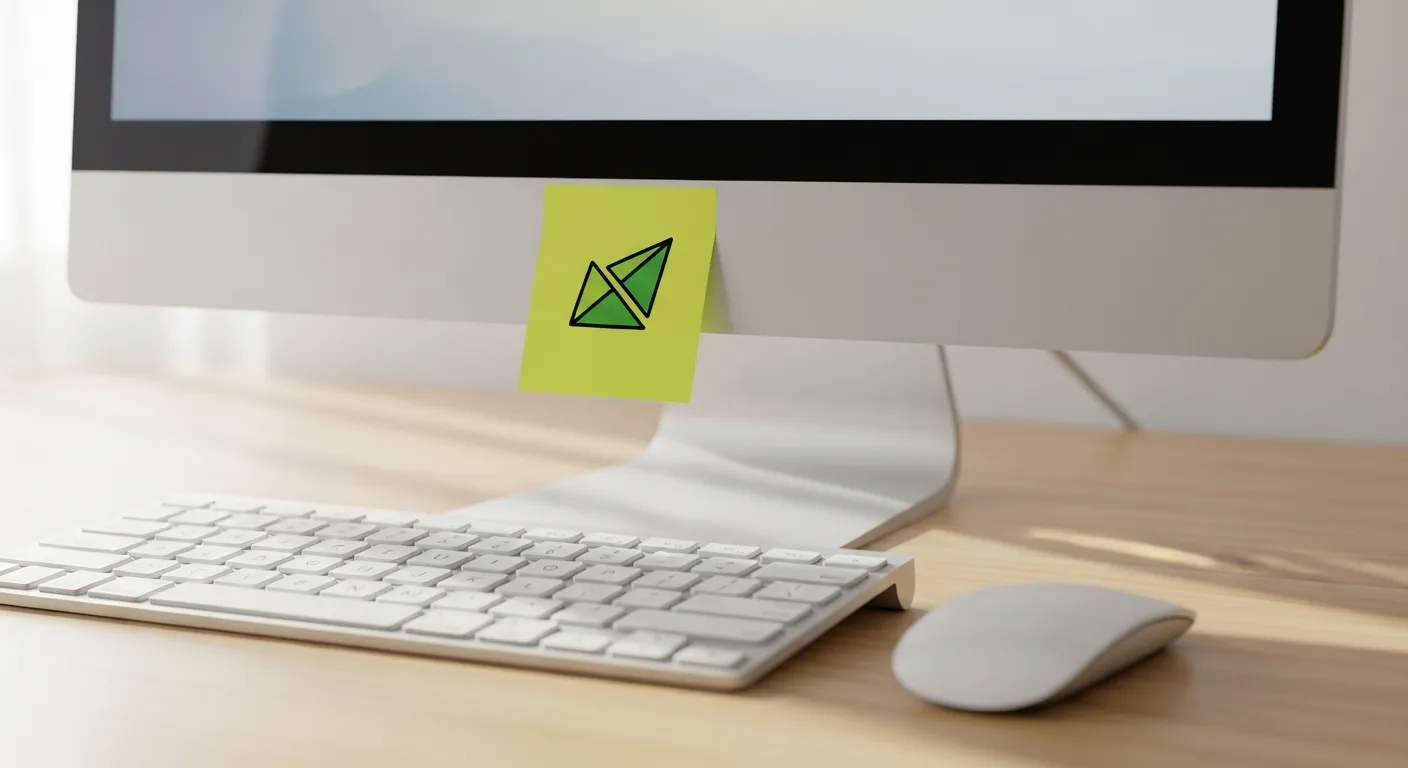
- Write the nine on a sticky note and put it on the monitor bezel, where your eyes land as your hand drifts toward the mouse.
- Interrupt the reach. When you go for the mouse to do one of those nine actions, stop and use the keys, even if it is slower that day.
- Drill the text five once. On day one, spend five minutes in a blank document. Jump by word, select three words, delete them, then jump to the line end, and repeat until the moves feel familiar.
- Audit on Friday. Cross off every shortcut you now use without looking. Carry the rest into next week instead of adding more on top.
The first few days will feel slower than the mouse. That dip is the cost of moving a skill from deliberate effort to habit, and it passes with repetition. The sticky note is a small piece of environment design: the cue sits where the old behaviour starts.
Find any app’s shortcuts in under a minute
Your three app-specific shortcuts should come from the tool you live in, not from a generic list. Most apps will show you their own list:
| App or platform | How to see its shortcuts |
|---|---|
| Google Docs | Ctrl+/ (Cmd+/ on Mac) opens the full list |
| Gmail | Turn shortcuts on in Settings, See all settings, General, Keyboard shortcuts. Then press ? for the list |
| Slack | Ctrl+/ (Cmd+/ on Mac) |
| Microsoft Office on Windows | Tap Alt to show letter KeyTips on the ribbon. Hover over buttons to see their shortcuts |
| Any Mac app | Menus show the shortcut beside each command. Cmd+Shift+/ opens Help search to find a menu item by name |
Google’s Docs shortcut list is worth bookmarking if you write there daily. It covers formatting, headings and comment navigation that most people still do by mouse.
Two workflows, before and after
An executive assistant booking a meeting from an email
The mouse version: click the email client in the taskbar, read the request, open the calendar, click New Event, type, click back to the briefing document, highlight the agenda link, right-click Copy, click back to the calendar, right-click Paste. That is roughly ten pointer trips.
The keyboard version, with Gmail shortcuts enabled: Alt+Tab to the inbox and read the request. Press e to archive it, Alt+Tab to Google Calendar, and press c to create an event. Alt+Tab to the briefing document, Ctrl+F for the meeting title, select the agenda link and press Ctrl+C. Alt+Tab back to the calendar and Ctrl+V. The hands never leave the keys, which also suits a batched email workflow where you clear messages in one sitting.
A thesis editor moving a paragraph from page five to page one
The mouse version means scrolling up, scrolling back, dragging a highlight, right-click Cut, scrolling up again, and Paste. Afterwards the editor has to find their place on page five again before carrying on through the chapter.
The keyboard version in Word for Windows works from anywhere inside the paragraph:
- Ctrl+Up to jump to the start of the paragraph.
- Ctrl+Shift+Down to select to its end.
- Ctrl+X to cut, then Ctrl+Home to jump to the top of the document.
- Ctrl+V to paste, then Shift+F5 to return to the last edit location.
Once practised, this takes a few seconds and the editor’s eyes stay on the text. Mac users should swap Ctrl for Cmd but check Word’s own list, because a few navigation keys differ. For long editing sessions, pair this with a deep work ritual so the faster editing goes into protected time.
Keep the gains without over-optimising
The goal is fewer pointless reaches, not a mouse-free life. The mouse is still faster for:
- design and layout work
- selecting irregular spreadsheet ranges
- finding your way around an app you have never used
Once the built-ins are automatic, add customisation where you repeat a multi-step action daily. On a Mac, System Settings, Keyboard, Keyboard Shortcuts, App Shortcuts lets you bind any menu command to keys of your choice, using its exact menu name. On Windows, Microsoft’s free PowerToys Keyboard Manager remaps keys and shortcuts. A text expander handles phrases you type over and over, such as an address or a standard reply.
Run the 1-3-5 cycle again whenever you adopt a new main app or switch operating systems. When a week’s sticky note comes back fully crossed off and you can’t think of nine actions you still do by mouse, retire the note.