
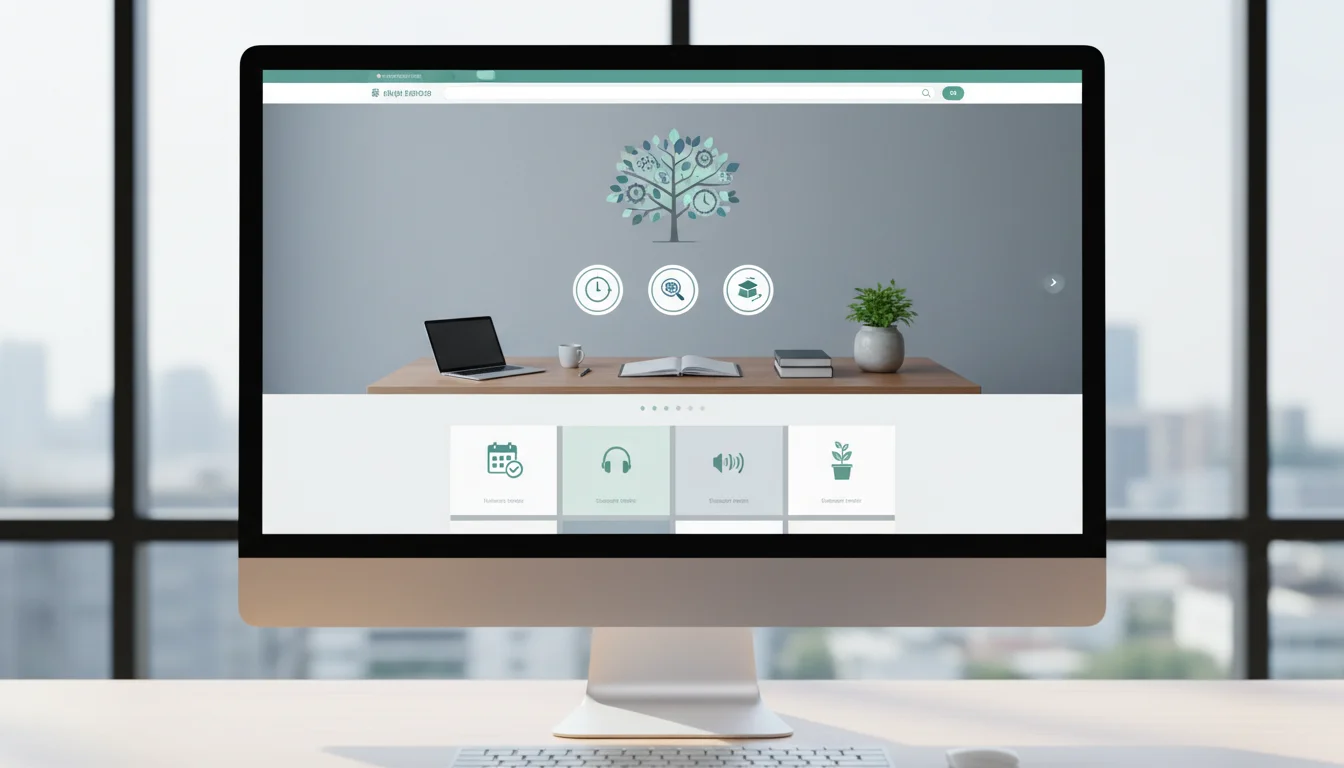
For a telehealth clinician running video sessions from a home office, interruptions multiply across devices rather than staying on one app. One doorbell press can trigger a speaker mid-session, flash a nearby display and buzz a phone at once.
Removing smart hardware forfeits useful home automation, so keep every device and change the routing instead. Moving alerts out of the clinical room, freezing displays and gating monitor power through a smart plug takes about an hour of setup.
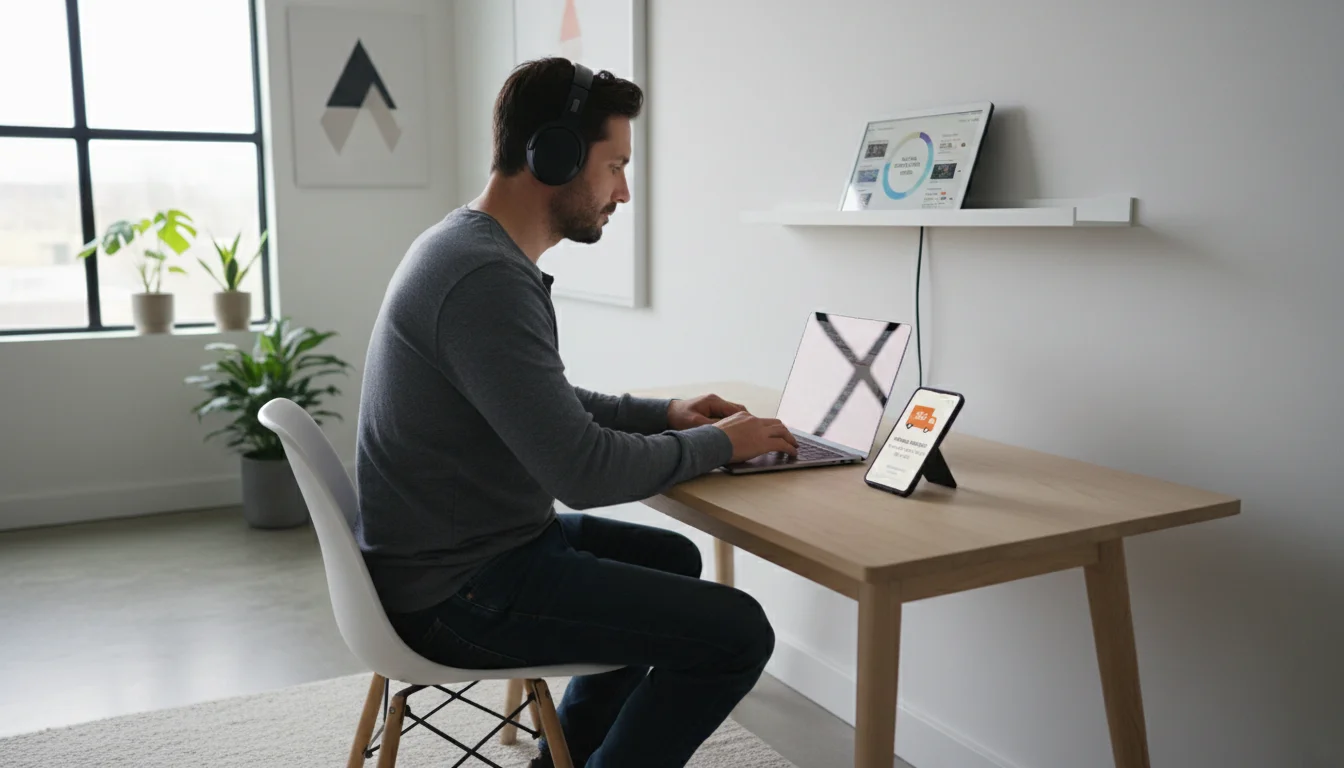
Audit room interruptions across one clinical workday
First, run a one-workday audit before touching a single setting. Keep a sticky note beside your keyboard and mark every time a nearby device chimes, speaks or shifts its screen.
For a clinician seeing four video sessions a day, 14 marks is a plausible tally. Six are doorbell or camera announcements, four are smart display headline changes, three are appliance pings and one is a thermostat tip.
Only two items needed action, a parcel requiring a signature and an open fridge door, and neither needed to interrupt a client. A two-second chime breaks eye contact and carries the recovery cost shown in the multitasking myth.
Before changing any settings, confirm your tally covers one full workday and flags safety alarms like smoke, carbon monoxide and water-leak alerts. Those safety alerts stay at full volume everywhere.
Route visitor and appliance alerts out of the session room
Second, spend 15 minutes rerouting alerts away from the office instead of silencing the whole house. Visitors and deliveries belong on a hallway speaker or muted phone, never over an open clinical microphone.
Ring doorbells and cameras on Echo
Ring sends Doorbell Press and Motion Announcements to Echo devices through its Alexa skill. Ring lets you switch both off on specific Echo devices while leaving them on in the hallway or kitchen.
Open Devices in the Alexa app, select your doorbell or camera and open announcement settings. Turn off Motion Announcements everywhere, then turn off Doorbell Press only for the office Echo.
Next, set a Do Not Disturb schedule matching clinic hours under Devices, Echo & Alexa. Alexa’s Do Not Disturb blocks notifications, announcements and incoming calls while letting alarms and session timers ring.
Nest doorbells on Google speakers and displays
In the Google Home app, open the doorbell’s settings and select Visitor announcements. Untick the office speaker or Nest Hub, leaving the kitchen speaker active so someone else can answer the door.
On either platform, draw camera activity zones excluding the street and switch alerts from all motion to people or packages only. Look for zones and event types inside camera settings.
Robot vacuums, appliances and thermostats
Quiet the remaining noise sources from your tally in the same 15-minute pass. Schedule robot vacuums for lunch or after hours, mute spoken appliance updates to error-only alerts and silence indoor cameras while home.
In your thermostat app, turn off energy tips, filter reminders and motion-based away mode during work hours. Keep extreme-temperature alerts active so the house stays protected while you sit still.
Before moving on, press the doorbell and trigger an outdoor camera to confirm only the hallway speaker or muted phone responds. The office speaker must remain silent.
Freeze smart displays and move screens out of sight
Third, spend 10 minutes locking down any smart display near your desk. Rotating cards of news, weather, shopping prompts and photos pull your eyes away from clients through peripheral motion.
Count how often you glance at a changing screen during ten minutes of charting if you doubt the pull. A static clock stops the visual tug without unplugging the display.
Echo Show
Swipe down on the screen, open Settings and select Home Content, or Home & Clock. Toggle off news, trending topics, shopping and recommendations, then pick a plain clock face under Clock & Photo Display.
Nest Hub and Nest Hub Max
In the Google Home app, open the display’s settings and select Photo Frame. Google’s Photo Frame settings replace the slideshow with a full-screen clock or a single slow-interval album.
Move any desk display behind your direct line of sight. A static clock behind your shoulder beats a static clock beside your webcam.
Before building routines, watch the display for two minutes from your chair. Confirm it holds a plain clock face with no headlines, weather cards or photo transitions.
Build the clinical session routine with cool light and door cues
Fourth, spend 15 minutes programming a Deep Work scene that sets the room for client blocks. Trigger it by voice, a smart button or a schedule matching your time-blocked calendar.
- Office lights: 5000K at 80-100% brightness for crisp camera lighting.
- Office smart plug: on, powering the monitor, desk lamp and any background-audio speaker.
- Office speaker or display: Do Not Disturb on.
- Optional door cue: a hallway bulb turns red so housemates know a confidential session is underway.
- Optional thermostat: set to working temperature so you do not adjust it 20 minutes in.
In the Alexa app, one routine can switch smart plugs, set tunable bulbs and turn on Do Not Disturb under More and Routines. In Google Home, build a household automation or set a Digital Wellbeing downtime schedule.
If your office uses motion sensors for lighting, extend the occupancy timeout so lights never switch off while you sit still on camera. Keep two scenes only and skip color loops.
In a controlled office study by Mills and colleagues, workers under high color temperature light reported better alertness, concentration and work performance. Because that workplace used cooler fixtures than home bulbs, 5000K offers a bright daytime default below 6500K.
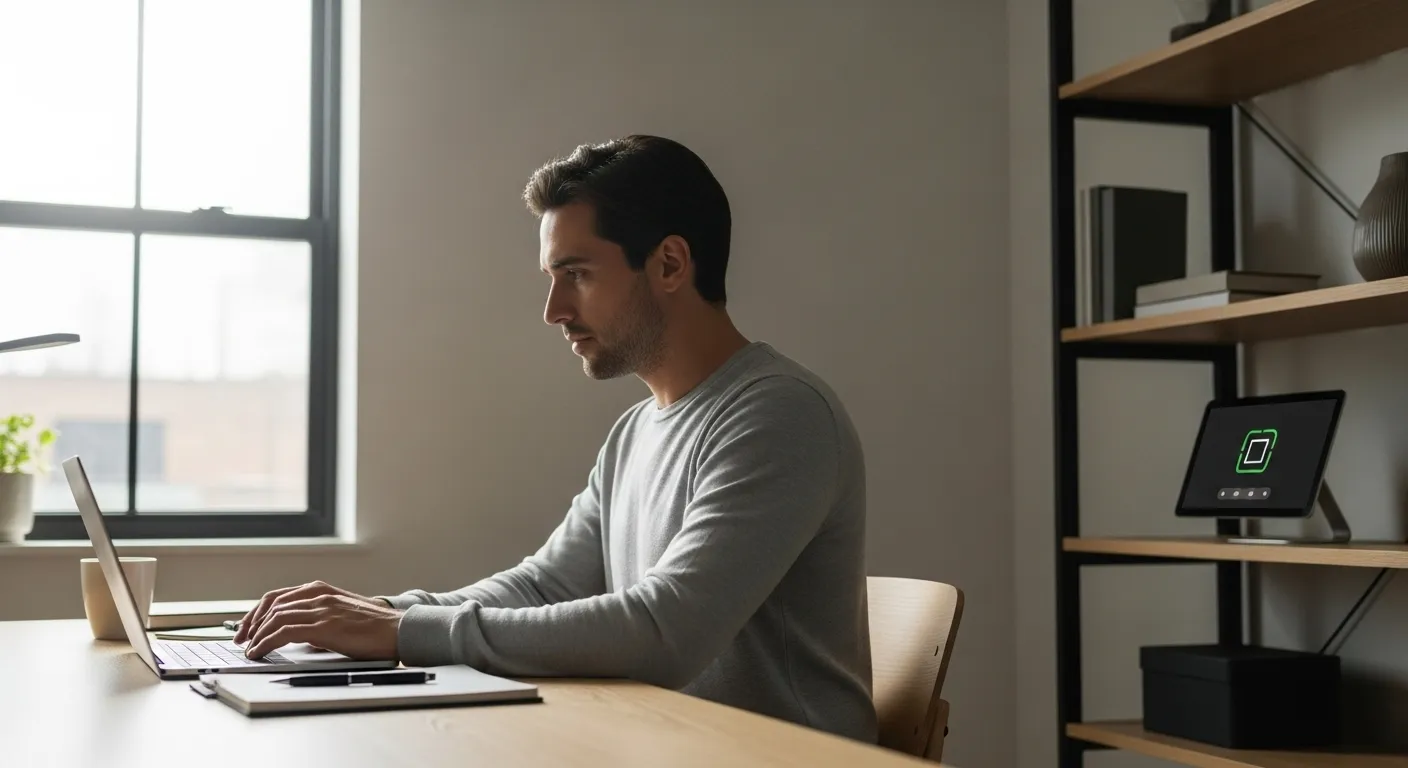
The routine prepares the room in seconds. For what to do in the first five minutes after the lights shift, see our guide to creating a deep work ritual.
Before wiring the evening scene, trigger this routine once and check the room. Confirm the monitor plug turns on, Do Not Disturb locks the office speaker and the hallway bulb glows red.
Wire the shutdown routine to gate monitor power at closing time
Fifth, spend 10 minutes building a Shutdown scene that ends clinic hours cleanly. Because only the session routine powers the monitor plug, reopening work at night requires a deliberate override.
- Office lights: 2700K at 30-40% brightness, or off with a warm living-area lamp on.
- Work monitor plug: off, gating the screen and peripherals while you shut down a desktop tower yourself to protect unsaved notes.
- Office speaker: Do Not Disturb off only if it doubles for evening music.
- Hallway door cue: return the bulb to white or turn it off.
Schedule this scene for your intended finish time, such as 5:45pm. Keeping the computer off the smart plug prevents sudden power loss while letting the plug kill the screen.
Warm evening lighting also protects sleep after late sessions. A chronobiology study found that 6500K light in the evening suppressed melatonin and reduced the normal night-time drop in core body temperature compared with warmer light.
The cool scene that helps at 10am works against rest at 9pm, so ensure no stray automation returns office bulbs to 5000K after dark. Pair the dark monitor with a workday shutdown ritual to close open clinical loops.
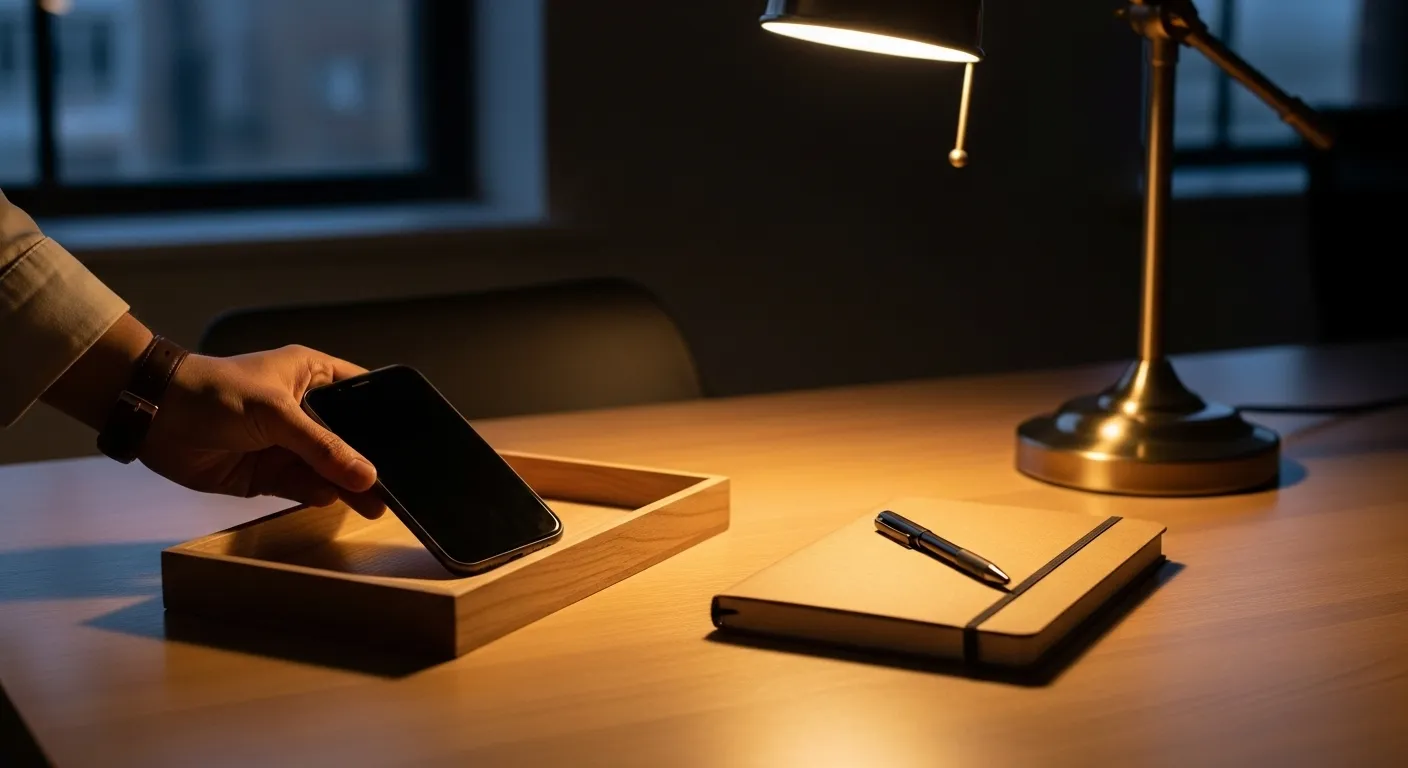
Before relying on the schedule, shut down your computer and trigger the shutdown scene manually. Verify the lights shift to 2700K, the door bulb resets and the monitor stays dark until morning.
Keep quiet settings from drifting after firmware updates
Sixth, spend five minutes once a month preventing configuration drift. App and firmware updates frequently re-enable promotional display cards or default alert categories without warning.
Before placing any new smart device near your desk, apply our rules for managing notifications. Keep an alert enabled only if it demands action from you within the hour.
Handle rare exceptions deliberately rather than abandoning the system. When expecting a signed delivery, enable Doorbell Press on the office speaker for the morning and switch it off once the parcel arrives.
In a shared house, name routines plainly, such as Office focus and Office off, and tell everyone what the red bulb means. Clear labels stop housemates from overriding a live session.
At each monthly check, open your speaker, display and doorbell apps together. Confirm no update has re-enabled announcements, rotating news cards or thermostat tips.



1 Comment