Most desks fill back up within a week of a big clear-out. Nothing on them has a fixed place tied to how often you use it, so items land wherever there is space, cables multiply behind the monitor, and paper piles up because it has nowhere official to go.
A desk stays clear because of its layout, not because of a tidying session. Sort every object into one of three reach zones, run the cables once, raise the monitor to free the surface, send all paper to a single tray, and spend five minutes at the end of each day returning things to their zones. This guide covers each step in the order you should do it.
Why a cleared desk fills up again
Desk clutter is mostly a placement problem. When a pen, charger or invoice has no assigned spot, the nearest flat surface becomes its home, and the nearest surface is always the strip in front of your keyboard.
That costs more than looks. Brain imaging work by Stephanie McMains and Sabine Kastner found that multiple objects in view compete for representation in the visual cortex, so a crowded scene makes it harder to attend to any one thing. Separately, research by Boyoun Chae and Rui Zhu, published in the Journal of Consumer Research and featured in Harvard Business Review, found that a cluttered workspace threatens people’s sense of personal control and reduces how long they persist on difficult tasks.
Hunting for things also breaks your train of thought. In a 2014 study by Erik Altmann, J. Gregory Trafton and David Hambrick, interruptions lasting only three to four seconds doubled or tripled sequence errors once participants returned to their task. Rummaging for a charger you can’t find is a similar break.
Step 1: Map your desk into three reach zones
Ergonomists divide a seated work area by how far you can reach without moving your torso. Cornell University’s workstation guidelines put the keyboard and mouse in the immediate reach area, close enough that your upper arms hang relaxed at your sides. Extend that logic to every object and each one gets an obvious home.
Sit in your normal position. Sweep your forearm across the desk with your elbow at your side: that arc is your primary zone. Now straighten your arm fully: the band between the two arcs is secondary. Anything you must lean, stand or open a drawer to reach is tertiary.
| Zone | Distance from body (approx.) | Permitted items | Items to ban |
|---|---|---|---|
| Primary | Up to 35-40 cm (14-16 in), the forearm sweep | Keyboard, mouse, the one notebook or document for the current task | Mugs, phone, paper stacks, chargers, decor, anything from yesterday |
| Secondary | About 40-65 cm (16-26 in), full arm reach | Monitor base, inbox tray, one pen, water bottle, lamp, one charging lead, one plant | Spare supplies, reference books, anything used less than daily |
| Tertiary | Beyond arm’s reach: drawers, shelves, wall | Spare pens, stapler, reference binders, archived files, headphones when off | Today’s active work, anything that must stay visible to get done |
One exception to strict minimalism: field experiments by Marlon Nieuwenhuis and colleagues found that adding plants to a lean office improved workers’ concentration and productivity. A single plant in the secondary zone earns its place.
To fill the zones, borrow Marie Kondo’s habit of sorting by category rather than by location. Pull every pen from every drawer, mug and bag into one pile before deciding how many to keep; seeing fifteen pens together makes it easy to keep two.
Consider a freelance genealogist with a 120 cm desk and 31 objects on it, from a magnifier to loose printouts of parish registers. After the forearm-and-arm test, four items qualify for the primary zone and seven for secondary. Fourteen go into drawers or onto a shelf, including the binders of finished family trees, and six (dead pens, a cable for a retired phone, two empty boxes) leave the room.
Step 2: Run every cable once, properly
- Unplug everything and remove orphans. Any cable without a device you currently own goes into one labelled box in storage or leaves the house.
- Get the power strip off the floor. Mount it under the back edge of the desk with screws or heavy-duty adhesive, or drop it into a cable management box behind the monitor. Every plug now has a short run.
- Bundle and route. Gather monitor, laptop and lamp cables into one fabric sleeve or a line of adhesive clips, and send them down a single desk leg. Use hook-and-loop ties instead of zip ties so you can add a device without cutting anything.
- Tag the plug end. A small label on each plug where it meets the strip saves you tracing cables when something fails.
- Leave one charging lead on top. Anchor a single phone or headphone cable in the secondary zone with a weighted or adhesive cable holder so it can’t slide behind the desk.
On a standing desk, leave a loose loop of slack where the bundle leaves the desktop, long enough to reach the highest setting without tugging.
Step 3: Raise the monitor and reclaim the surface
A monitor riser solves a posture problem and a space problem at once. The same Cornell guidance recommends the top of the screen sit at or slightly below eye level, roughly an arm’s length away, and most stock stands and every laptop sit lower than that.
To size a riser, sit normally, measure from the desk to your eye height, and subtract the height of the screen’s top edge. That gap is the lift you need. If you raise a laptop, add an external keyboard and mouse, or you trade neck strain for shoulder strain.
The space under the riser is useful and risky. Give it one job only, such as parking the keyboard overnight or holding today’s notebook. Once it collects receipts and spare cables, it is just a drawer you can see.
Step 4: Send all paper to one inbox tray
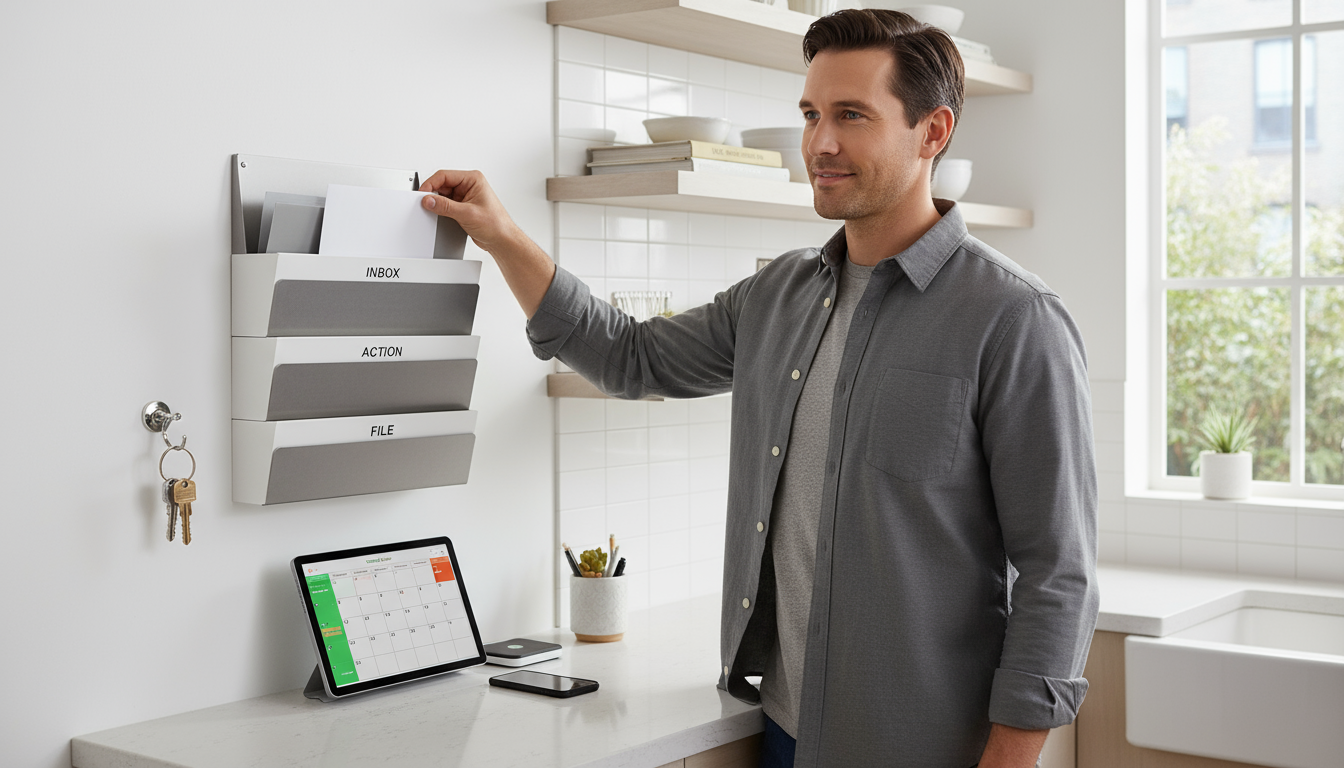
A single tray is the paper version of the capture habit at the core of David Allen’s Getting Things Done: everything new lands in one physical in-tray, and you empty it by deciding what each item is rather than letting it pile up.
- One tray, secondary zone. Place it on your non-dominant side so it never drifts into the primary zone. Multi-tier sorters tend to become three piles instead of one.
- Everything undecided goes in. Mail, printouts, receipts, sticky notes, business cards. If it is paper and you haven’t decided what it is, it lives in the tray, not on the desk.
- Emptying means deciding, not finishing. Each item gets filed, binned, scanned or turned into a task. The one-touch rule for mail and paperwork covers those quick decisions, and the full GTD workflow handles anything that turns into a multi-step project.
Process the tray at least twice a week, and immediately if papers start sliding off the top.
Step 5: The five-minute end-of-day reset
Zones only hold if things go back into them. When the layout is right, five minutes before you stop work is enough.
- Minute 1: Remove what doesn’t belong. Mugs to the kitchen, wrappers and spent sticky notes in the bin.
- Minute 2: Clear the primary zone. Every item returns to its zone; the keyboard slides under the riser if that is its overnight home.
- Minute 3: Feed the tray. Loose papers go in. Skim the top for anything due tomorrow.
- Minute 4: Write tomorrow’s first action. One line on a sticky note left on the keyboard means you start the next day knowing exactly where to pick up, which makes walking away easier.
- Minute 5: Charge and wipe. Devices onto the charging lead, a quick wipe of the surface, lamp off.
If you also want to close out your calendar and inbox, fold these five minutes into a fuller workday shutdown ritual as its final step.
Keeping the layout working
Once a month, run a quick zone audit. Anything that has sat in the primary zone for a week without a reason needs a proper slot in the secondary zone or further away. Anything in a drawer you haven’t touched in a month can leave the desk entirely.
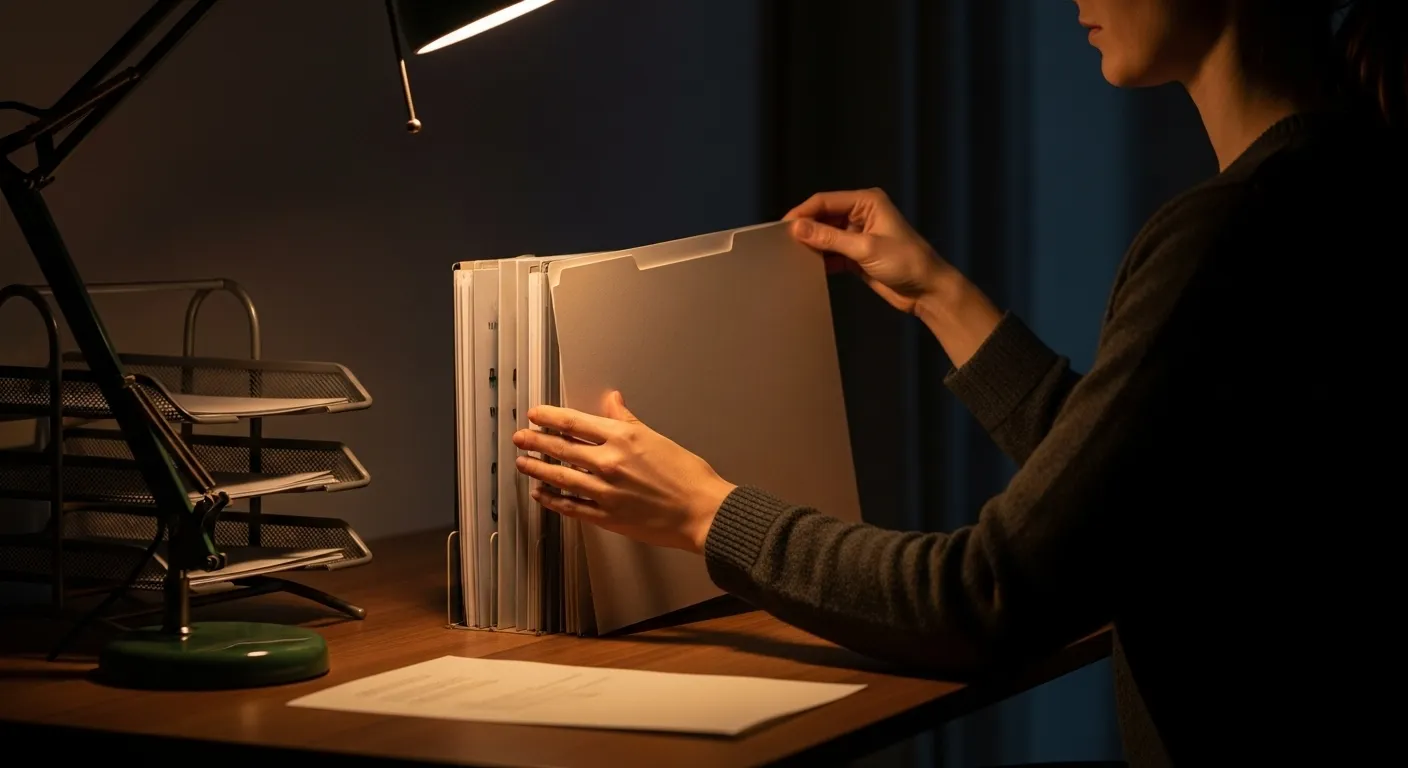
Watch for zone creep when new work arrives. A month-long crunch on several projects might genuinely call for three folders of drafts and reference material within reach. Give them a temporary vertical file holder in the secondary zone that goes back to storage when the work ships, rather than three stacks beside the keyboard.
Small desks follow the same map, compressed. If yours is under 100 cm wide, push tertiary storage onto the wall and see our guide to a productivity corner in a small apartment. Your computer desktop is a separate job, and organizing your digital files applies the same one-home-per-item logic to folders.